
Before anything else
One install contains the customer app and the partner app. Three screens stand between opening it and using it, and they take about a minute.
0 First run & signing in
Pick your language. Eleven appear, each written in its own script — Hindi, English, Marathi, Gujarati, Bengali, Tamil, Telugu, Kannada, Malayalam, Punjabi and Urdu, which lays itself out right-to-left. The choice takes effect immediately and lives in Settings → Language afterwards.
Then pick your side. Plan an event gives you the customer app in maroon and gold. Grow my business gives you the partner app in indigo and teal. You are not locked in — Settings → Switch app moves you across, though it signs you out on the way, because a session belongs to an account with one role.
Sign in with your mobile number and the one-time code that follows. The customer side then asks for an email and verifies that too: the app treats a profile as complete only when it has both, because a booking needs a way to reach you that isn't a phone call.
The partner side skips the email step and takes you straight to business registration, which is where a vendor's work starts anyway.
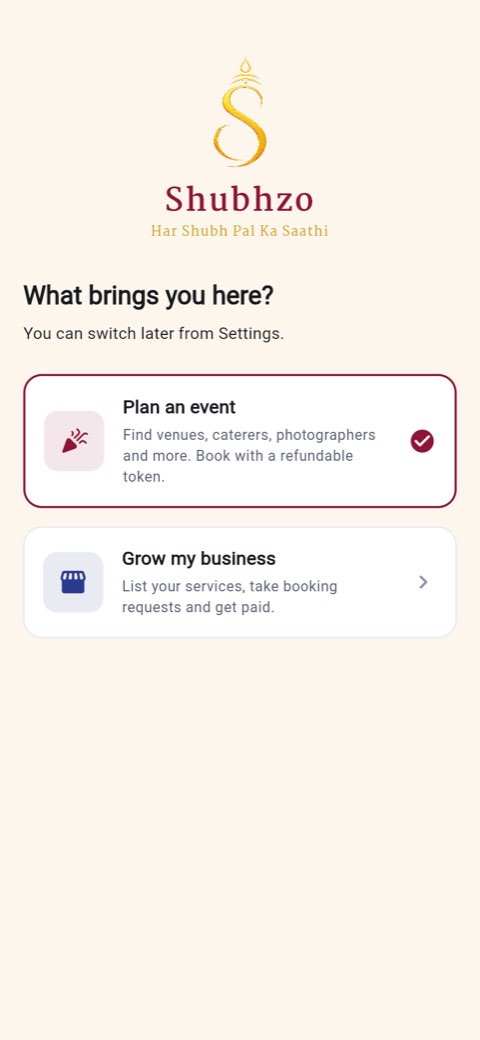
The customer app
The app is built around an event, not around a shopping cart. Make the event first and everything afterwards — the checklist, the budget, the guest list, the reminders — hangs off it.
1 Create your event
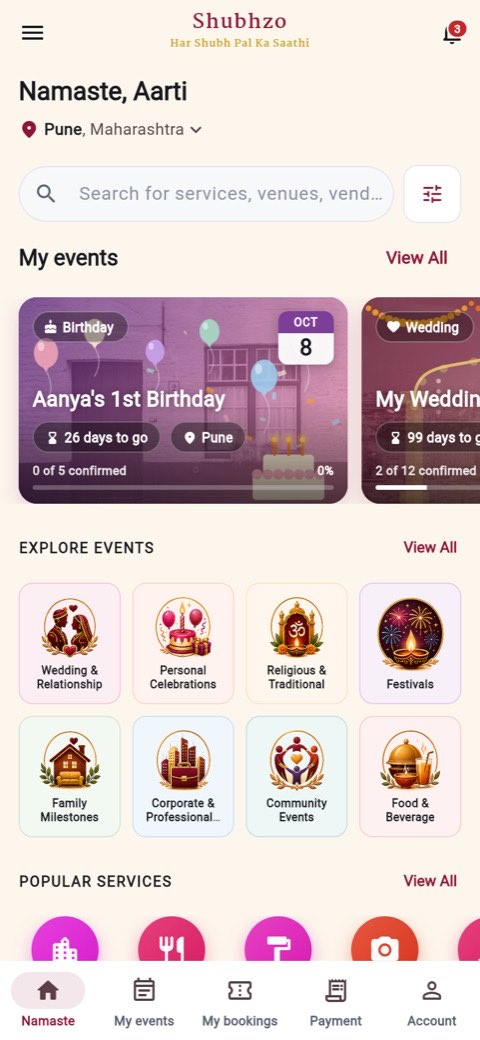
My events → New event. Pick the occasion, the date, the city and a guest count. From those four answers the app builds a checklist of the services that occasion usually needs — twelve for a wedding, five for a first birthday — and from then on every card that mentions your event shows real progress against it: 2 of 12 confirmed, with a bar.
You do not have to book in any order, and you can add a service the checklist didn't think of. What the checklist buys you is that nothing is quietly forgotten in month three.
2 Find a vendor
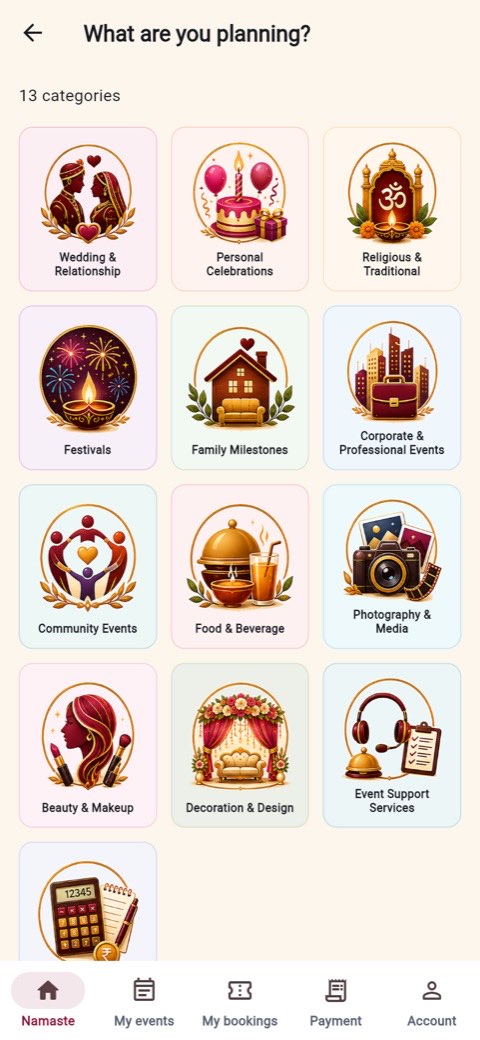
Either tap a service on your checklist — which takes you straight to the right list — or browse from home. The grid shows the thirteen categories the app has artwork for; the other sixteen of the twenty-nine are reached through search. Every category, every service and every tile colour comes from the server, so the catalogue can grow without you updating the app.
The filters are worth using. City, price range, guest capacity, minimum rating, free on a particular date, specific facilities, verified only. The price and capacity sliders are built from the results actually in front of you, so there is no filter position that returns nothing.
Compare before you commit. Tap the compare icon on two to four cards and open the compare bar. The table marks the best value in each row — cheapest, highest rated, most experienced — instead of leaving you to scan across columns.
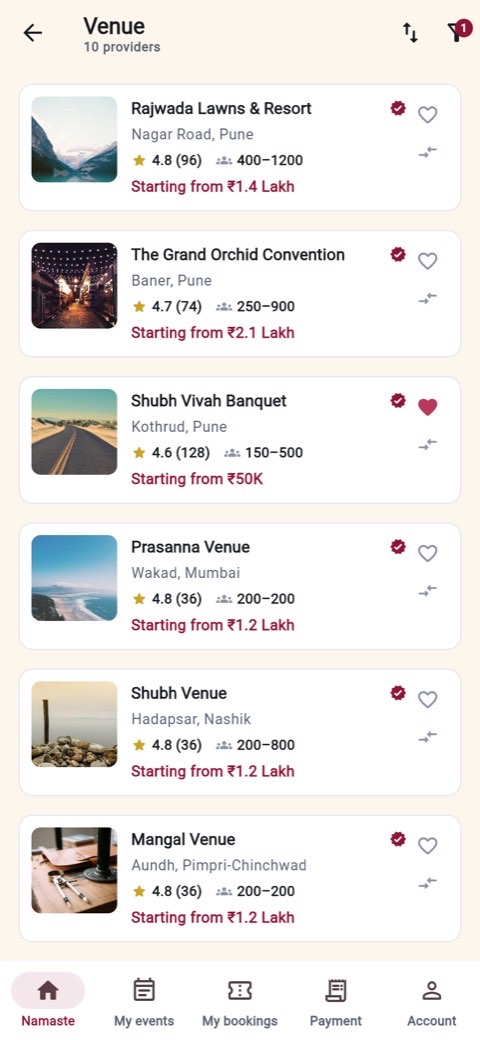
What you will not see is a phone number. Until a booking with that vendor is confirmed, the app shows +91 98765•••10 and says why. This is not the app hiding a field it was given — the server does not send the number at all.
Sorting offers six orders, including relevance, price up and down, rating, and how quickly a vendor usually replies. Response rate matters more than most people expect: a vendor who answers in twenty minutes is worth more than one who is ₹2,000 cheaper and answers on Thursday.
3 Read a vendor's profile
A profile is deliberately dense, because this is the screen where the decision actually gets made:
- A labelled gallery — each photo says what it is of (hall, mandap, entrance), so seven pictures of the same corner are obvious.
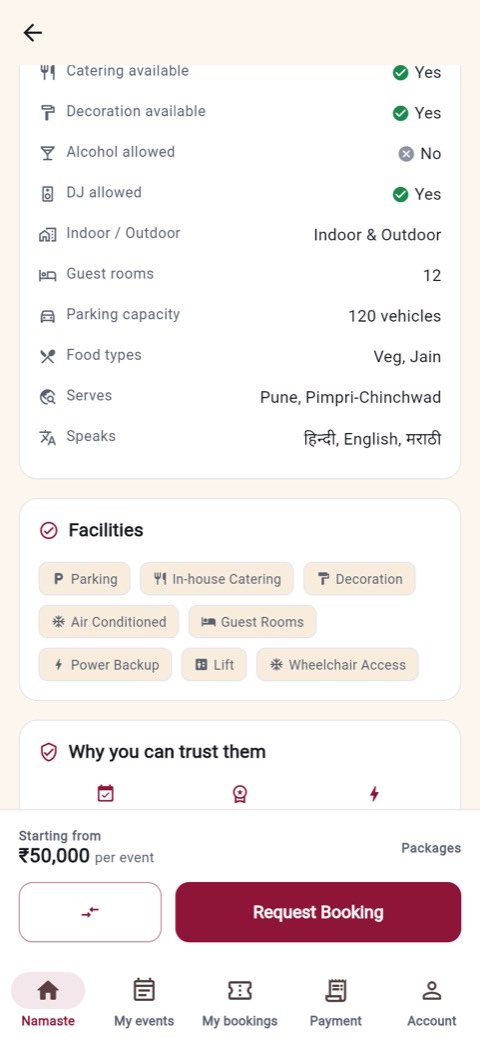
- The facts — capacity range, starting price, parking, rooms, food types, whether alcohol is allowed, indoor or outdoor, and which languages the staff speak.
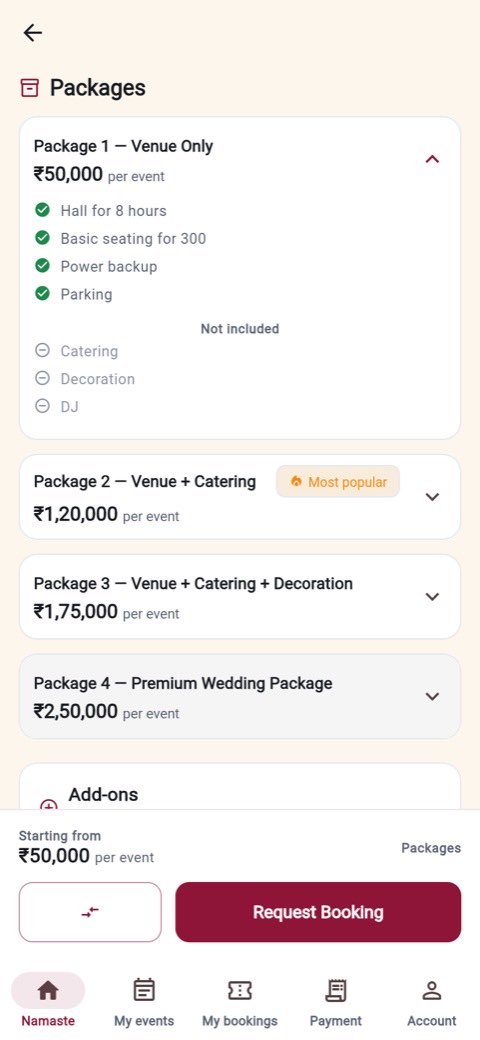
- Packages with inclusions and exclusions spelled out, plus optional add-ons with a running total.
- The trust panel — years in business, verification status, completed bookings, response rate.
- Reviews with a rating histogram, so you can see whether a 4.6 is everyone agreeing or a fight between fives and ones.
4 Book, and pay the token
Request Booking opens a form: which event this is for, the date, the time slot, the package, any add-ons, and a note. The date picker knows the vendor's calendar, so a date they have already sold is not offered to you.
At the bottom sits the token amount for that service — ₹1,001 for a venue, ₹501 for a photographer, ₹201 for decoration or makeup, ₹101 for a pandit or a mehndi artist. The form says plainly that the token comes back if the vendor does not accept within 24 hours.
What the token is for
It is not a deposit against the price. It is a small, refundable cost that makes a request mean something on both sides — which is what stops vendors being buried in enquiries that go nowhere.
5 Your token and QR
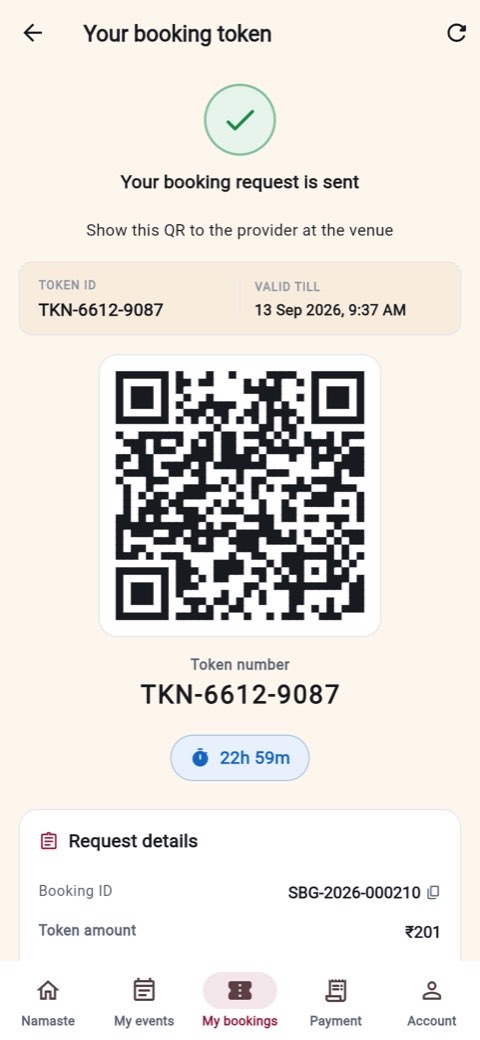
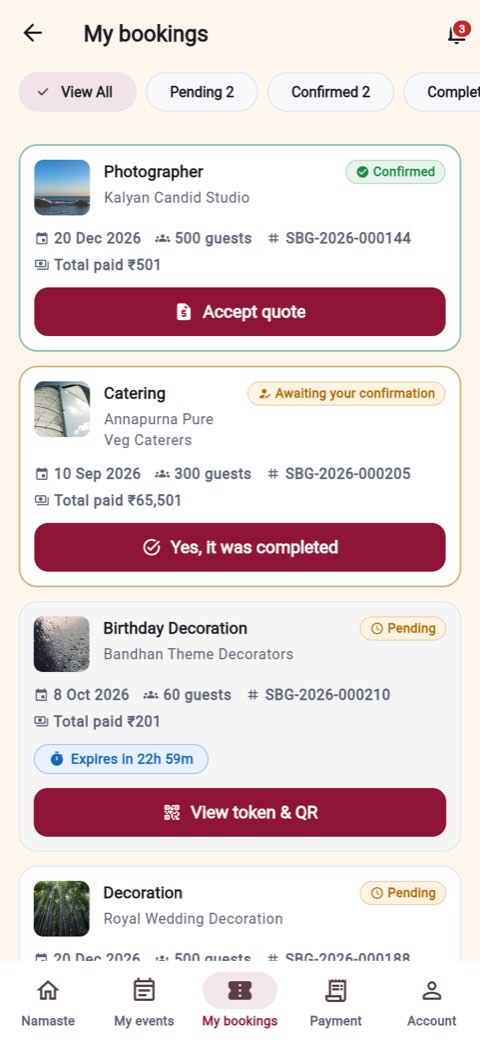
The moment the payment clears you get a token screen: a token number like TKN-6612-9087, a QR code, the booking reference, the amount paid, and a countdown that says how long the vendor has left.
What you do with it. Nothing, usually — most vendors accept from their phone. If you are meeting them, or standing at the venue, they scan this QR and the booking is confirmed in front of you.
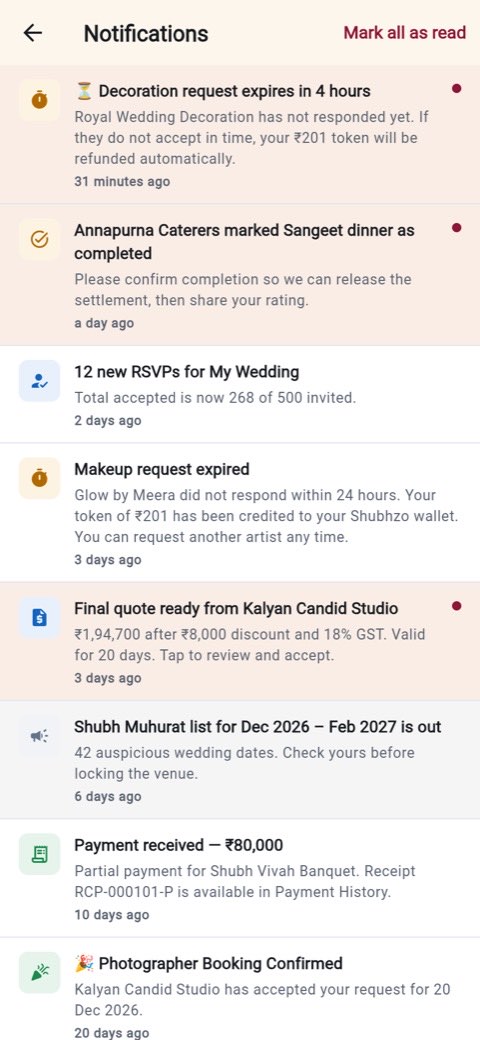
What happens if nobody answers. At twenty-four hours the request expires by itself. Your token is refunded to your Shubhzo wallet, both you and the vendor are told why, and the date is released. You do not have to chase anyone, and there is nothing to cancel.
Until the vendor accepts, both phone numbers stay masked and the message thread stays shut. A vendor cannot use an incoming request to harvest your number.
6 The quote and the balance
The token holds the date. The quote settles the price — which is why a quote arrives against a booking that is already confirmed. A green Confirmed chip sitting next to an "Accept quote" button is not a contradiction; it means the date is yours and the number is still being agreed.
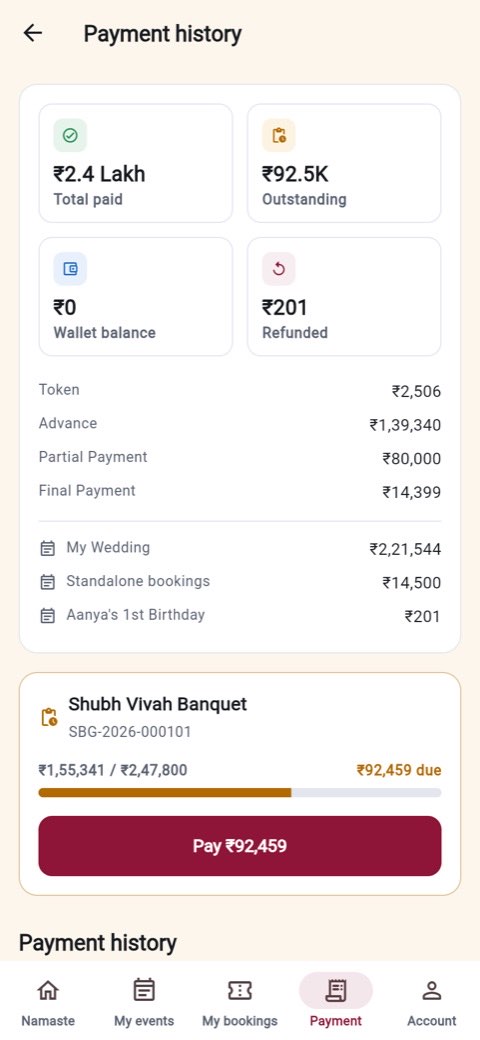
A quote arrives as line items, not a lump sum: the package, each extra (drone coverage ×2, a pre-wedding shoot, the album), a discount if the vendor offered one, 18% GST, and then your token credited off the total. Accept it and the balance payment appears in the Payment tab. Reject it and the vendor is asked to revise rather than the booking dying.
7 The event workspace
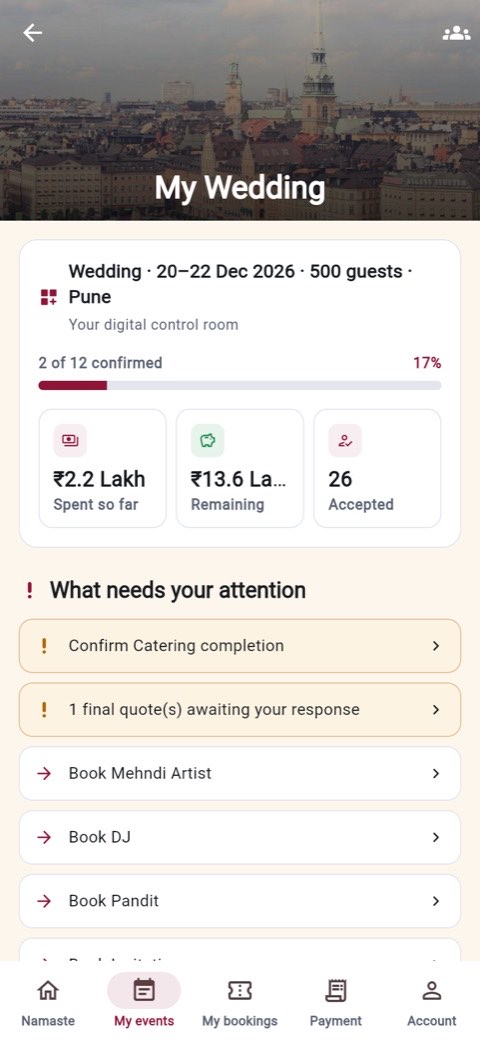
Open the event itself and you get what the app calls the digital control room. In one scroll:
- The header — occasion, dates, guest count, city, and how many of the checklist's services are confirmed.
- Three numbers — spent so far, remaining against your budget, and guests accepted.
- What needs your attention — a short, ranked list: a completion to confirm, a quote awaiting a reply, three services not started. Each row goes straight to the screen that clears it.
- The services checklist — every service with its vendor, its status and its amount, including the optional ones you haven't started, each showing what its token would cost.
- The day plan — the running order for the event itself.
8 Guests and invitations
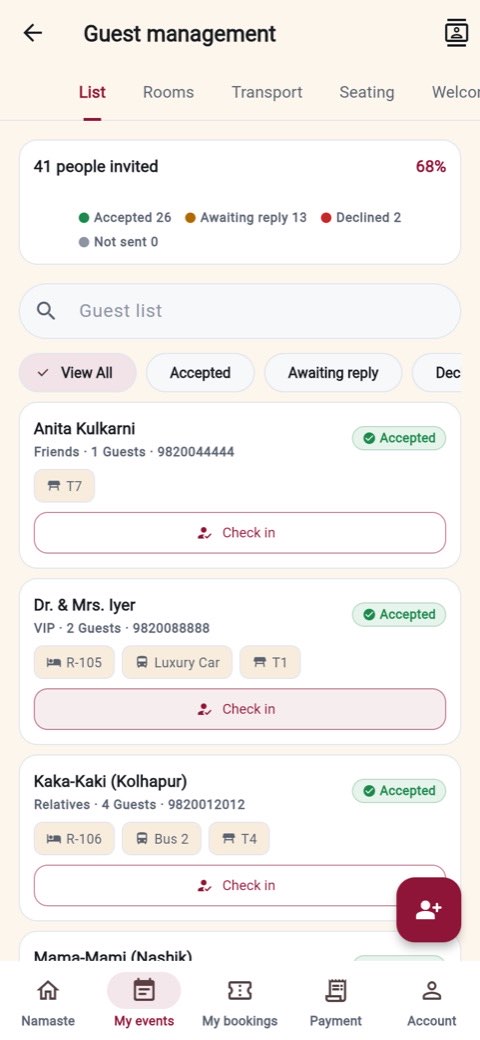
Guests. Add them one at a time or paste a list — Name, 9876543210, one per line — and the server de-duplicates on the phone number. Group them into family, friends, colleagues and neighbours, track RSVPs, and watch the head count move against the venue's capacity. Beyond the list there are tabs for hotel rooms, transport, seating and welcome desks, because at five hundred guests those stop being details.
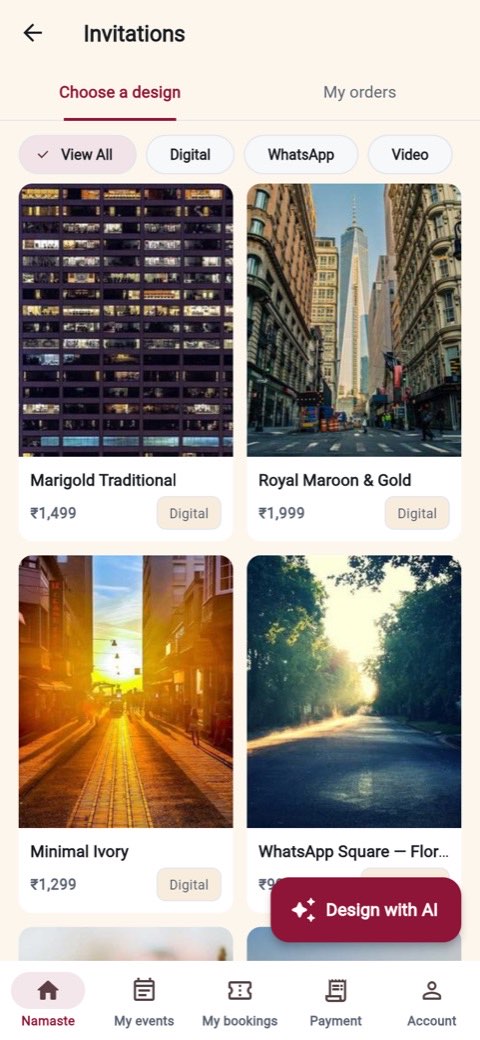
Invitations. Pick a design — digital card, WhatsApp square, video invite, printed order, or a wedding website — and the preview fills in your real event details. Every guest gets their own RSVP link, so a reply is attributable to one person instead of arriving on a link shared to four hundred people.
9 The five free tools
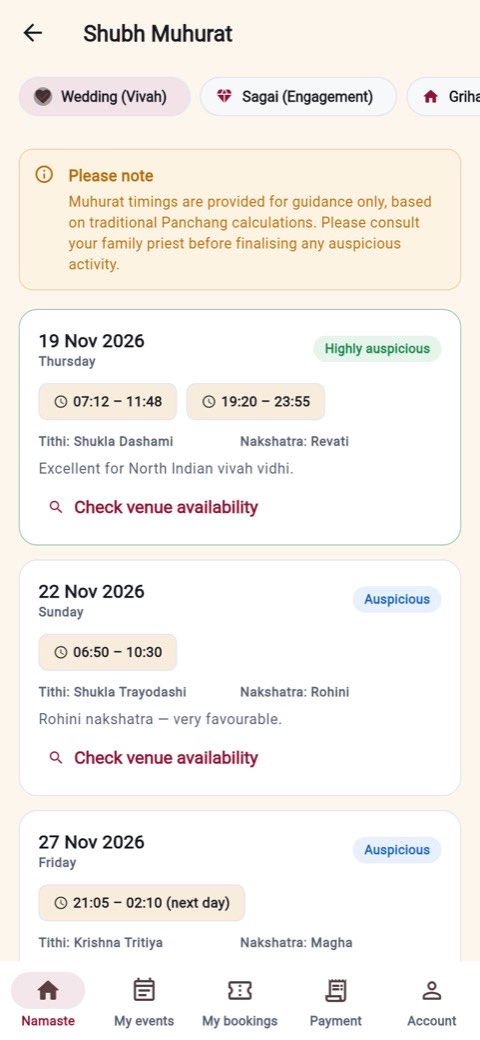
These need no booking and no vendor. They are reached from the home screen or from ☰ → Free tools.
10 Completion and review
After the event the vendor marks the service complete, and your booking moves to Awaiting your confirmation. Nothing is released until you agree it happened: your confirmation is the gate that lets the vendor's settlement run and that unlocks your review.
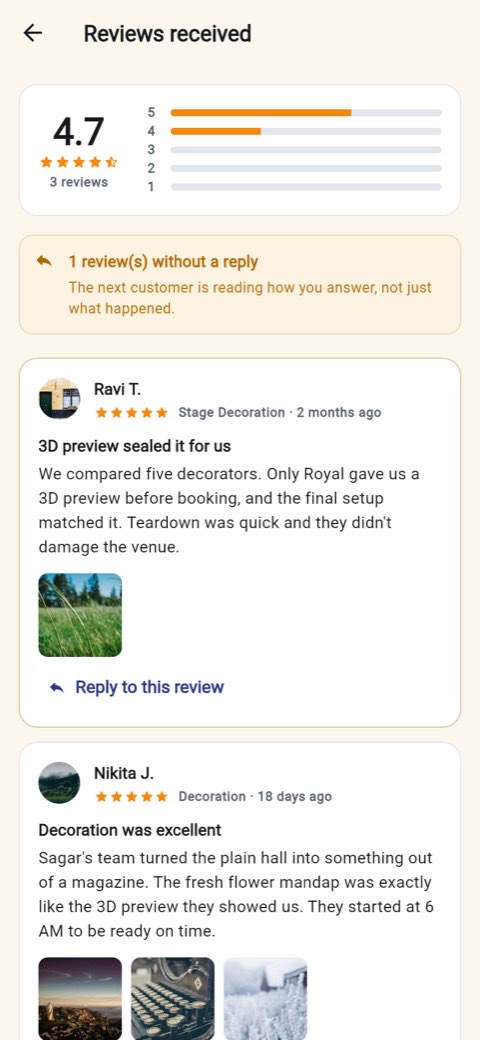
Then rate them one to five, write what you want, and attach photos. Your review moves their aggregate by the correct weighted amount — one new five-star does not swing a vendor with 240 reviews from 4.6 to 5.0 — and the vendor can reply to it publicly.
The partner app
Five tabs — Home, Jobs, Calendar, Earnings, Business — with the QR scanner floating above all of them, because a vendor opens it standing in front of a customer. Everything else is a module reached from the Business hub.
11 Register your business
The first screen is the pitch, not a form. Then it asks how you work — I run a business or I work on my own — because a halwai with a van and a banquet chain do not need the same twenty questions. Picking a trade on the light path pre-selects that service, so you never hunt for it in a catalogue of nearly two hundred.
Then four steps, not one long form:
- You — your name, the business name and type, and a tagline. The tagline is the single line that shows under your name in search results, so it is worth twenty seconds.
- Work — every service you offer, multi-selected across the catalogue or tapped from the commonly-picked chips, a starting price, years in business, and the languages you speak. Each service becomes its own listing.
- Place — city from a picker with a Use my current location shortcut, your area, address and PIN, every area you serve and how far you will travel.
- Review — your listing as a customer will see it, a summary of what is about to be registered, and the partner terms as four plain sentences with a checkbox. Reading your own card is the only reliable way to notice it says nothing.
If the server objects to something after you submit, the app takes you back to the step that owns the complaint rather than leaving a red line on a screen you can no longer see.
12 KYC, and the three gates before a first booking
Registering does not make you visible. Three things do, and the app is explicit about which one you are standing at.
What has to be true before customers can find you
Each gate is checked server-side. Trying to skip one doesn't fail silently — it names the gate that is still shut.
KYC takes identity and address documents by camera, gallery or file, plus PAN and bank details. The PAN and IFSC fields are validated as you type, so a malformed IFSC is a per-field error rather than a rejection three days later. If something is rejected you re-upload just that document.
13 Storefront, packages and the calendar
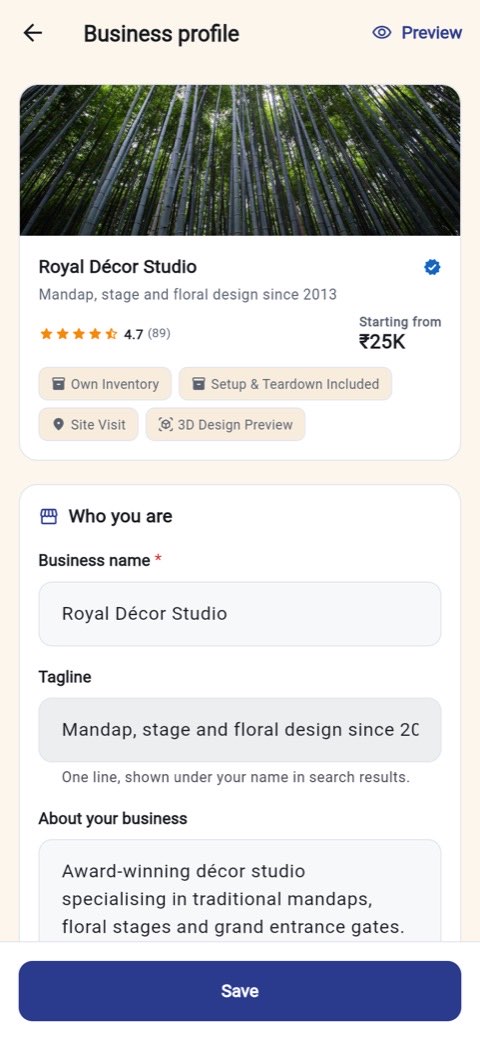
Your storefront is what a customer reads: name, tagline, the story of the business, service areas, starting price and photos. There is a preview button that shows it exactly as a customer sees it, which is the only reliable way to notice your own profile says nothing.
Packages work best as three tiers with a clear middle. Spell out exclusions as carefully as inclusions — the app gives them equal space because that is where disputes come from. Add-ons sit alongside, so a customer can build up from a base rather than negotiating.
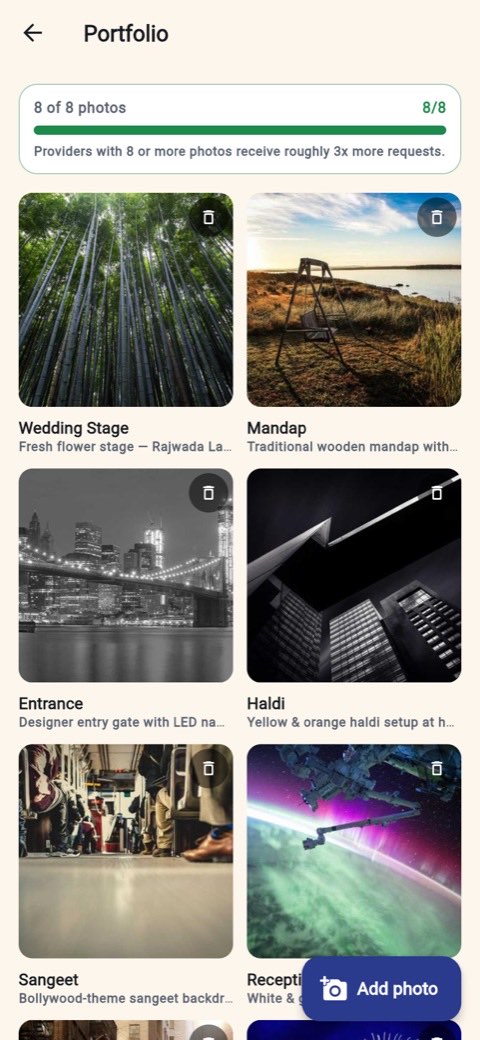
The portfolio tracks you against eight labelled photos, which is roughly where enquiries stop improving. Label them: "mandap", "entrance", "reception stage" — a labelled gallery is why a customer can tell seven angles of one corner from seven jobs.
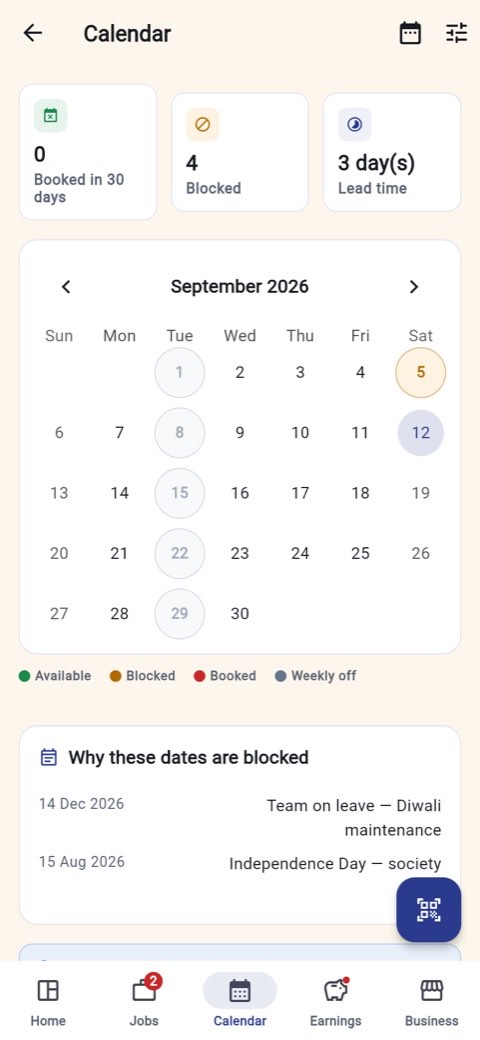
The calendar has four states: available, blocked, booked and weekly off, with a range blocker for a holiday. Booked dates come from confirmed bookings and cannot be unblocked by hand — tapping one opens the job instead of pretending to be editable. That single rule is what makes double-selling a date impossible rather than merely discouraged.
14 Take a job: scan, check, accept
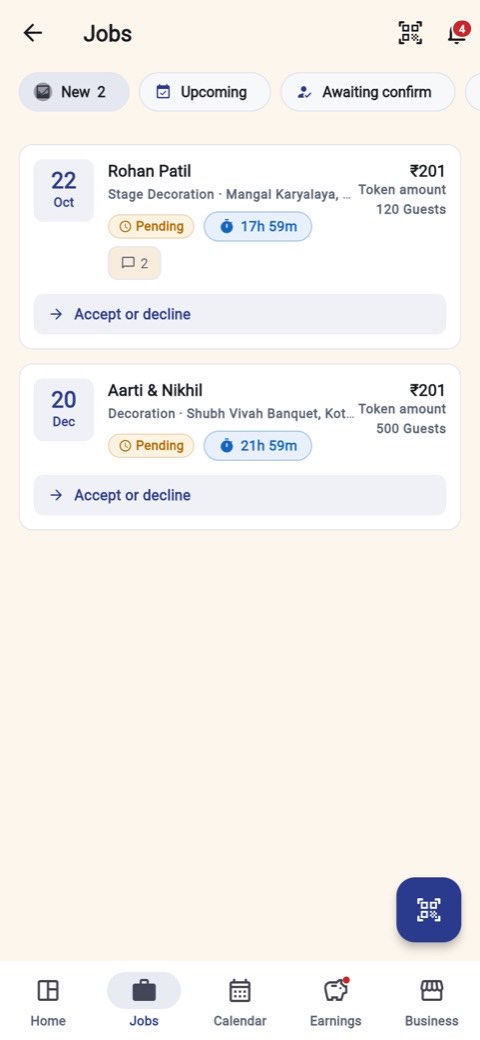
A request arrives with its own countdown. Open it and you get the customer's requirement, the date, the package they picked, the money position, and the single action it is waiting for. What you do not get, yet, is their phone number.
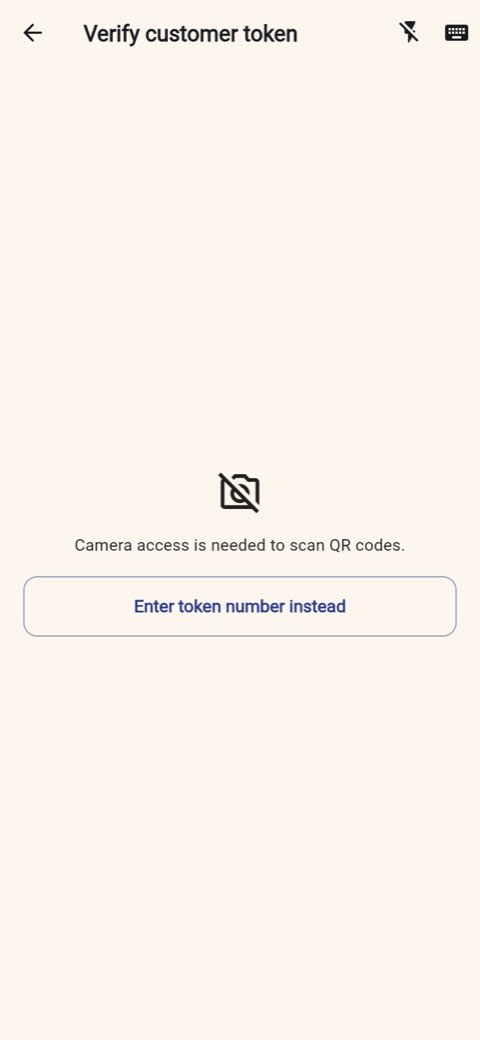
Tap the floating QR button — it is on every tab — and scan the customer's token, or type the token number if the camera is unavailable. Six checks run, and each is reported on its own line:
The six checks, and what a failure does not say
Left: a token issued to you. Right: a real token issued to a different vendor. Both are honest; only one names anybody.
Accepting confirms the booking, writes the date into your calendar, opens the message thread, and reveals the customer's contact details to both of you at the same moment. Declining refunds their token immediately.
15 Getting paid
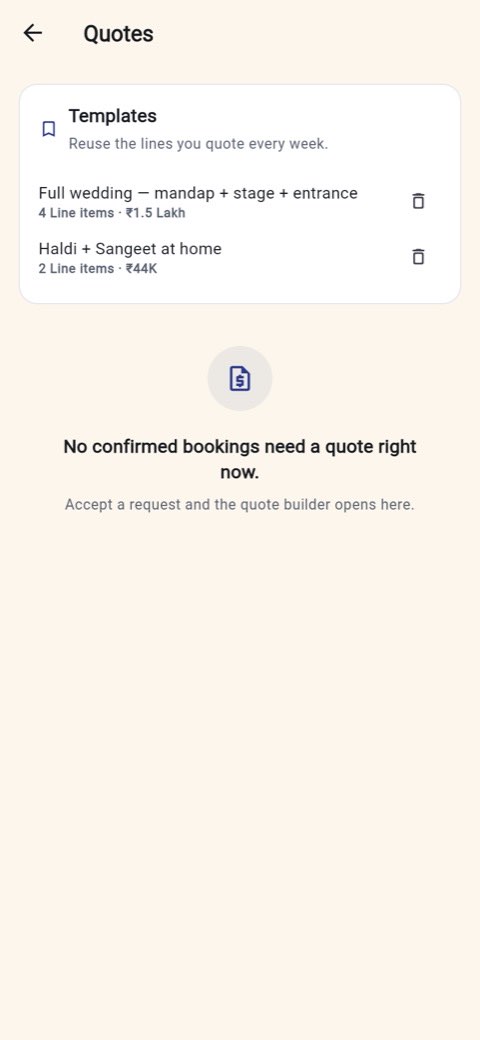
Send a quote from the quote builder, which arrives pre-filled with what the customer actually selected. Add line items, a discount, tax — and watch the live preview of what you will be paid after commission, so you are pricing against your own take-home rather than a gross number. Save it as a template and the next one takes a minute.
From request to bank account
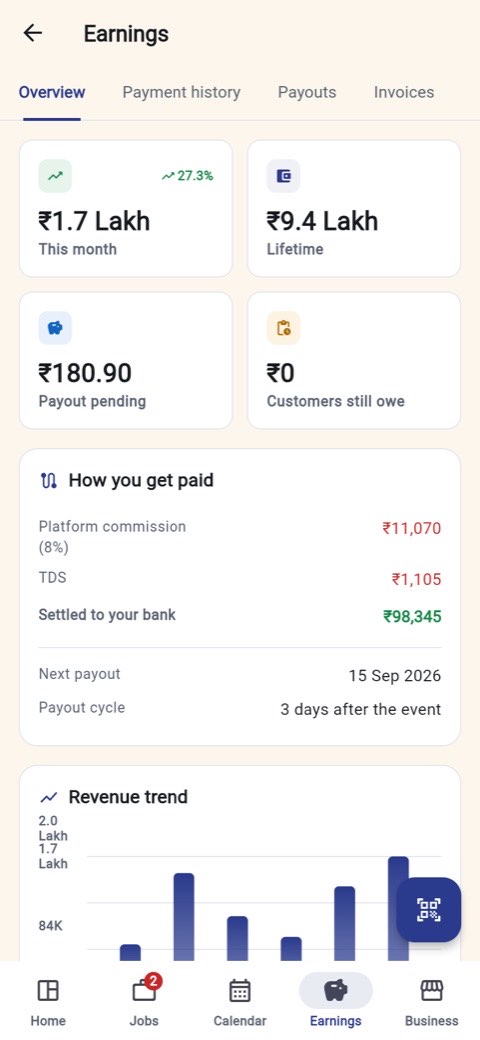
Five money events, in the order they happen. Commission and TDS come off once, at settlement.
The Earnings tab has four views: Overview (this month, lifetime, payout pending, what customers still owe), Payment history with the commission on each receipt, Payouts as settlement batches with their UTRs, and Invoices — GST invoices for the commission you paid, which is the document your accountant wants.
16 Insights, offers and plans
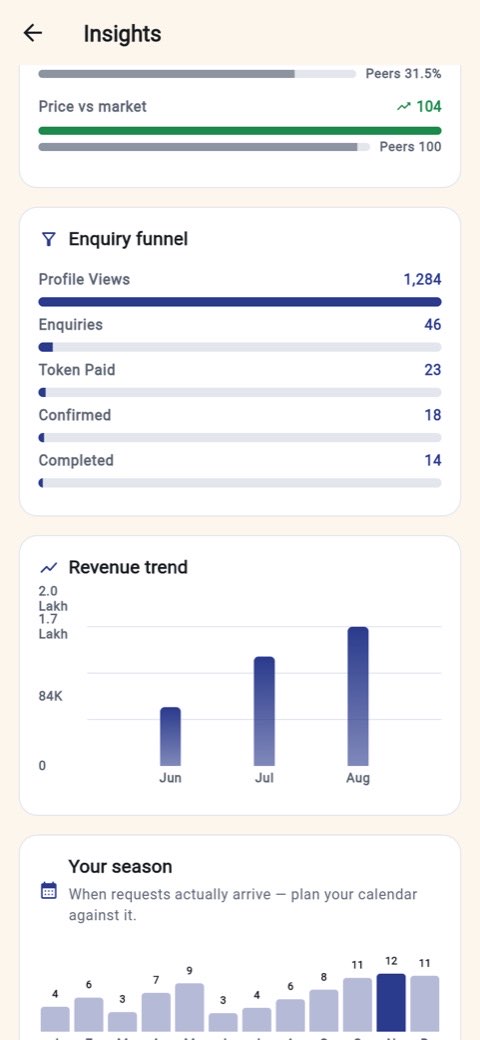
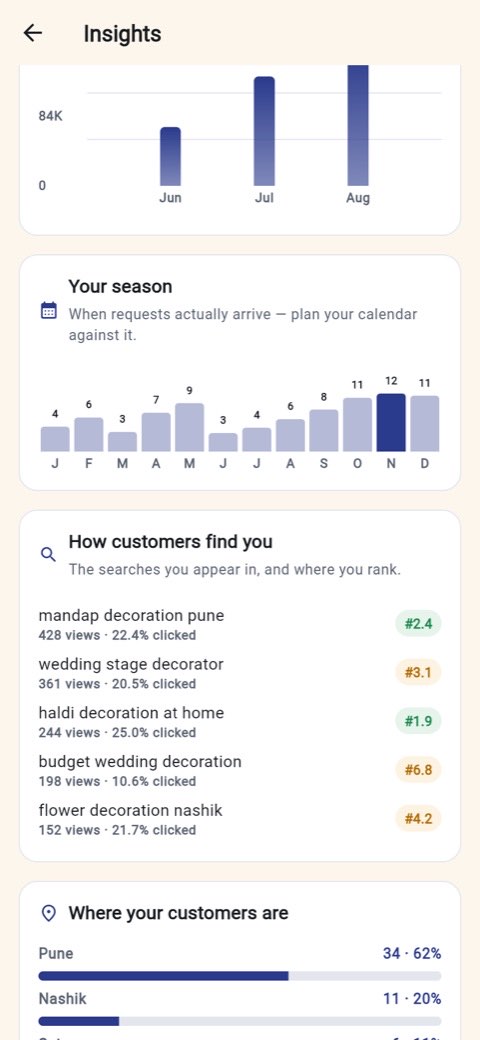
Insights is the screen to open weekly. It tells you five things, and each one ends in a link to the screen that fixes it:
- The funnel — views, enquiries, tokens paid, confirmed, completed. Where you leak tells you what to fix; a big drop from views to enquiries is a photo and pricing problem, not a service problem.
- Your season — a twelve-month demand curve of when requests actually arrive, so you block holidays in the quiet months instead of the busy ones.
- How customers find you — the exact searches you appear in, how many looked, how many clicked, and your average rank in each.
- Where your customers are — the area mix, which is how you decide whether the travel radius is worth widening.
- You vs vendors like you — response time, rating, photo count and conversion against comparable businesses, plus a reputation score and the four things that move it.
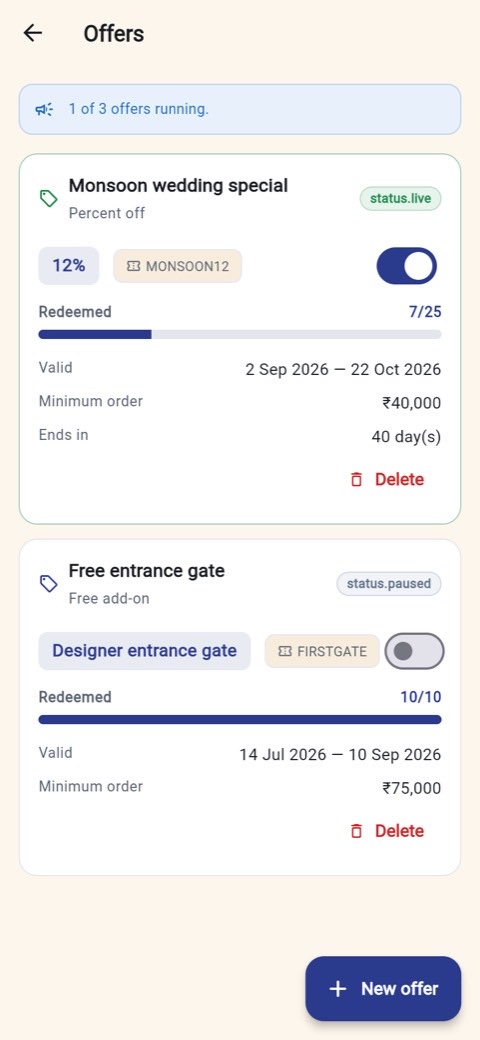
Offers fill quiet months: a percentage, a flat amount, or a free add-on, with an audience, a validity window and a redemption cap. There are guard rails — a discount over the operator's cap is refused, and deleting an offer customers have already redeemed pauses it instead, so the price someone was quoted keeps working.
Plans change one number that matters: commission. Starter is free at 10%; Growth is ₹999 a month at 8% with 1.8× search visibility and 60 lead credits; Pro is ₹2,499 at 6% with 2.5× and 200. Subscribing recalculates immediately — open a job and the payout line has already changed.
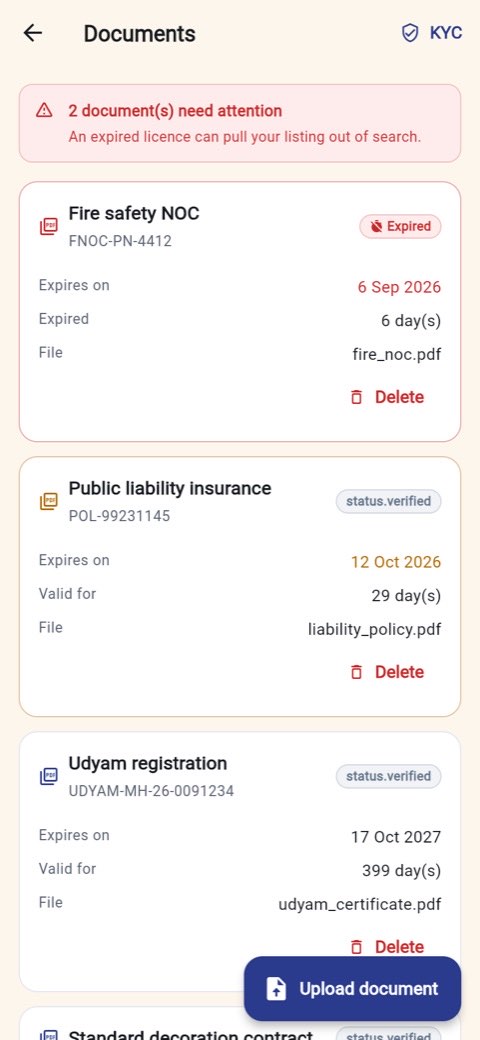
The rest of the Business hub: Team (crew with roles, permissions and per-job assignment), Messages (per-booking threads, shut until you accept), Documents (licences and insurance, with expiry warnings that surface on Home), Disputes (raised on a thread with an evidence list rather than argued over the phone), Academy and Referrals, and Business settings — lead time, jobs per day, weekly offs, travel radius and charge, advance percentage, cancellation policy, and a notification matrix with quiet hours.
Things that are meant to fail
Most of what makes a marketplace trustworthy is what it refuses to do. All of these are enforced by the server, so they hold however the app is asked.
| If this happens | What the app does |
|---|---|
| A token payment fails or is cancelled | No booking, no payment row, no notification — nothing is left behind to clean up. |
| You book the same vendor for the same date twice | Rejected as a duplicate before any money moves. |
| You book a venue for more guests than it holds | Rejected, with the venue's actual capacity in the message. |
| A request sits unanswered for 24 hours | It expires, the token is refunded to your wallet, and both sides are notified. |
| A vendor scans a token issued to someone else | The "valid provider" check fails, Accept is disabled, and no booking or customer is named. |
| A vendor scans a token for an already-confirmed booking | Reported plainly as already confirmed. No second acceptance. |
| Someone scans a QR that isn't a Shubhzo token | "This QR code is not a Shubhzo token." |
| Either side asks for the other's phone number early | Masked, with the reason shown — the server never sends it. |
| A vendor messages a customer whose request they haven't accepted | The thread is locked, with the privacy reason stated. |
| A vendor submits a listing before KYC is approved | Blocked, naming exactly what is missing. |
| A vendor switches themselves Live before a listing is approved | Refused, naming the gate that is still shut. |
| A vendor creates a 60% discount, or a fourth running offer | Refused against the operator's caps. |
| A vendor deletes an offer customers already redeemed | Paused instead of deleted, so quoted prices keep working. |
| A vendor adds a payout account with a malformed IFSC | A per-field error on the IFSC box, not a generic failure. |
| A vendor uploads insurance with no expiry date | Refused — the app cannot warn you about a date it does not have. |
| The network drops mid-flow | An offline banner stays up, cached screens still render, and the retry is on the failure rather than a dead end. |
Questions people actually ask
Is the token the same as a deposit?
No. A deposit is part of the price; the token is a small refundable amount — between ₹101 and ₹1,001 depending on the service — that makes a request cost something on both sides. It is credited against the final bill once the booking goes through, and refunded in full if the vendor does not accept within 24 hours.
What if the vendor never replies?
Nothing is required of you. At twenty-four hours the request expires on its own, the token goes back to your wallet, the date is released, and both sides are told why. You can book someone else immediately — you do not have to wait for the window to close first.
When does the vendor get my phone number?
When they accept your booking, and not before. Until then both numbers are masked and the message thread is locked. This is enforced on the server, so there is nothing for a modified app to reveal.
Can a vendor sell the same date twice?
No. Accepting a booking writes the date into the vendor's booked set, and the availability filter, your date picker and the accept endpoint all read from the same set. A booked date cannot be manually unblocked — tapping it opens the job instead.
Do I need an account to use the calculators?
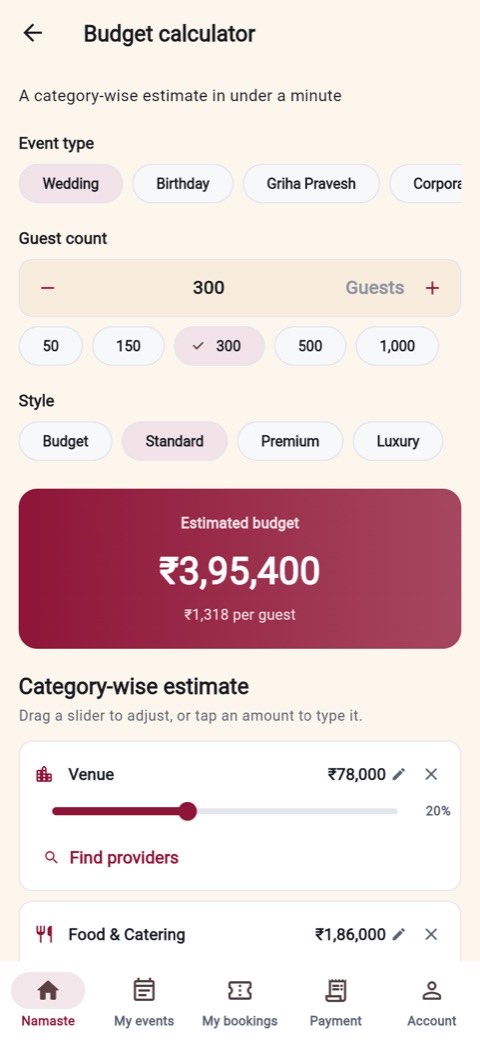
The budget calculator, guest estimator, food quantity, decor area and Shubh Muhurat are free and need no booking. You do need to be signed in, because they save what you enter against your event.
Can I use one phone number for both the customer and partner app?
Accounts are keyed by number and role, so the same number on the Partner side is a separate vendor account, not your customer account with extra screens. Switching sides signs you out for that reason.
How much does Shubhzo take from a vendor?
A commission on what the customer paid — 10% on the free Starter plan, 8% on Growth, 6% on Pro — plus TDS at 10% of that commission, which is deducted and deposited. On a ₹1,00,000 booking at the Starter rate the vendor is settled ₹89,000, three days after the event, with a UTR and a GST invoice for the commission.
What happens after the event?
The vendor marks the service complete and you confirm it. Your confirmation is the gate: it releases the vendor's settlement and unlocks your review. Nothing moves until you agree the service happened.
Which languages are fully translated?
English and Hindi are complete at 1,360 keys each. The other nine — Marathi, Gujarati, Bengali, Tamil, Telugu, Kannada, Malayalam, Punjabi and Urdu — carry a 217-key working subset covering navigation, primary actions, status chips, authentication and errors, and fall back to English for the rest. They are waiting on a native-speaker pass rather than a machine translation.
Where can I get the app?
Shubhzo is an Android app and is coming to Google Play. Get in touch if you want to be told when it lands, or if you are a vendor who wants to be on it at launch.